Buyer Qualification Tips
Last updated: June 11, 2026
You must first submit your customers for Buyer Qualification before creating a payment link. Approval rates can vary by program, and results will appear in the app in 1-2 minutes.
If your customer is not immediately approved, you may see one of these statuses:
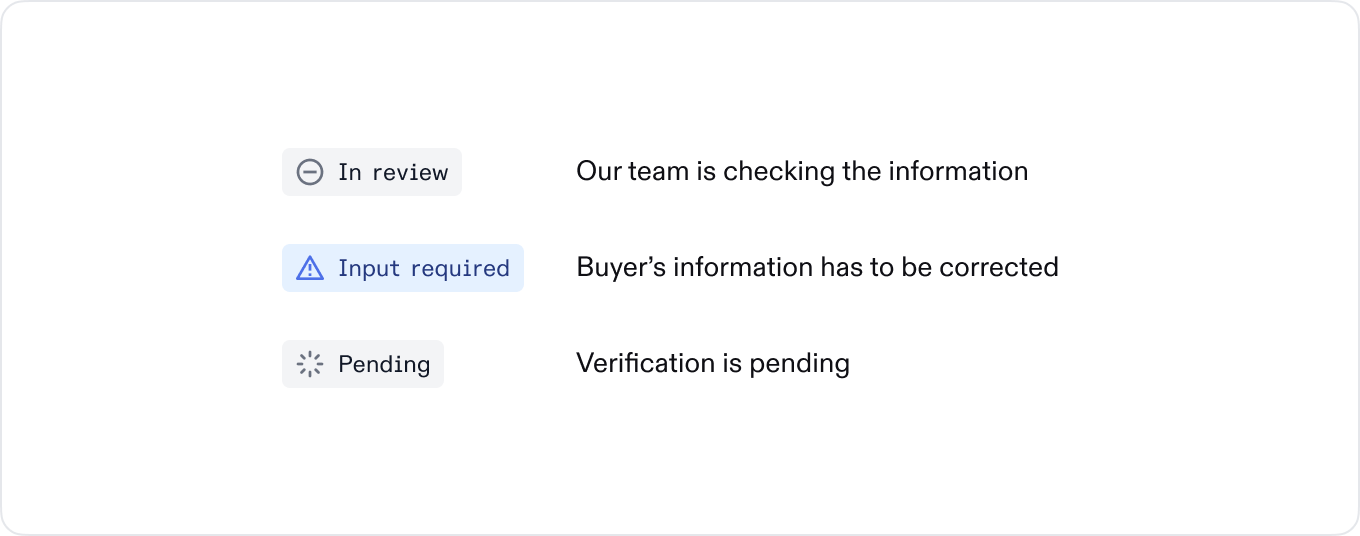
Typically, if a company does not pass buyer qualification, it is because the information submitted was not the correct legal name and/or incorporated address.
Tips to get the correct legal and incorporated info:
Typically, the legal name will be shown in the footer at the bottom of their website, and could include “Inc.” or “LLC,” for example.
Once you have their legal name, you can visit www.opencorporates.com to find their registered address. Enter their legal name in the search bar, select “exclude inactive,” and find the address that matches your customer’s legal name and country.
Sometimes the “registered address” matches the Headquarter address, and other times it doesn’t.
If the registered address on Open Corporates is in Delaware and the full street address is not provided, you can use this link to find it.
Enter the legal name, and it will give you the “registered agent info,” which should be the incorporated address.
Easy access to request support
We’ve made it even easier to get the support you need when you need it. Users can now create support tickets directly from the Capchase App on the All Deals page or in Salesforce CRM on the Opportunity Record. This eliminates having to navigate to another screen to ask for help.
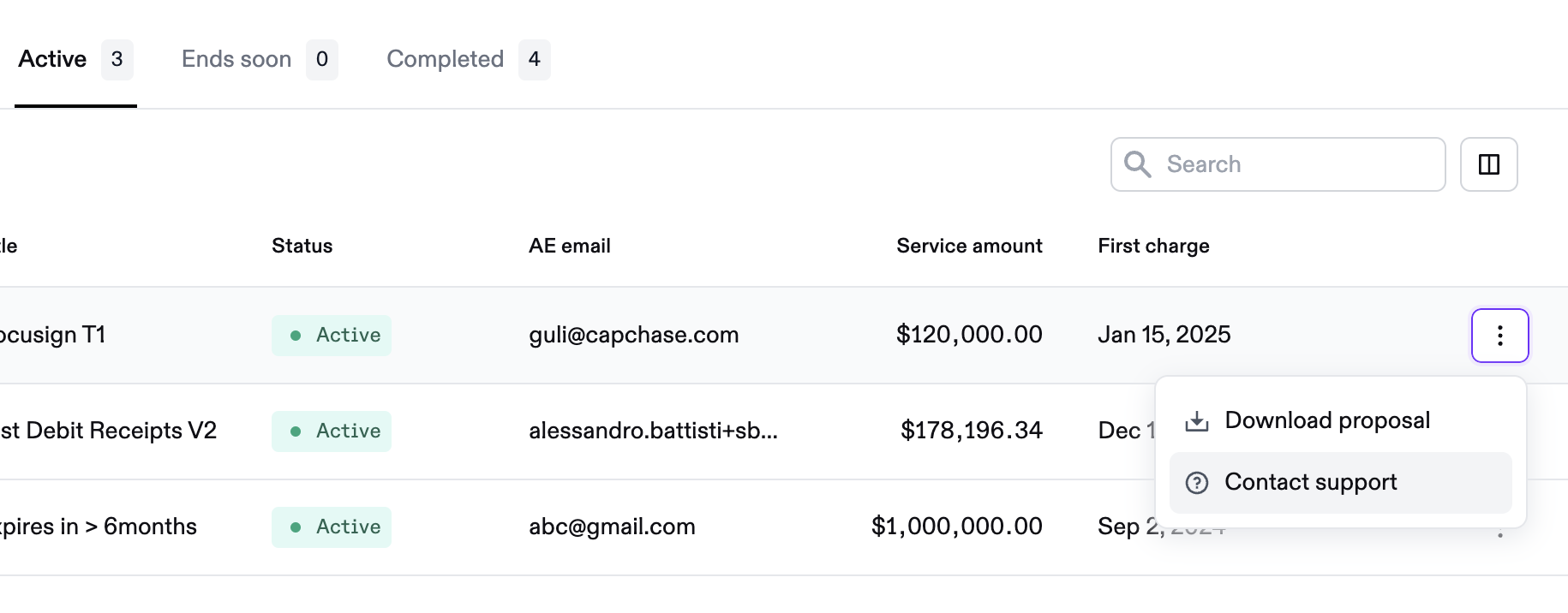
In the Capchase App on the All Deals page
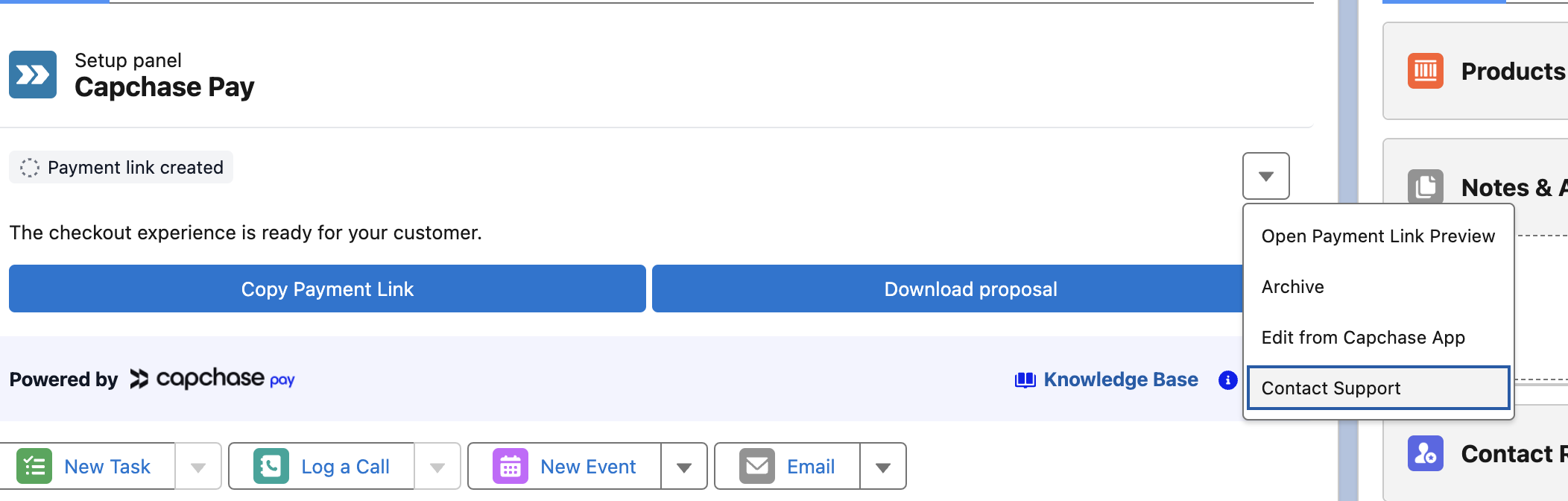
In Salesforce CRM, on the Opportunity Record
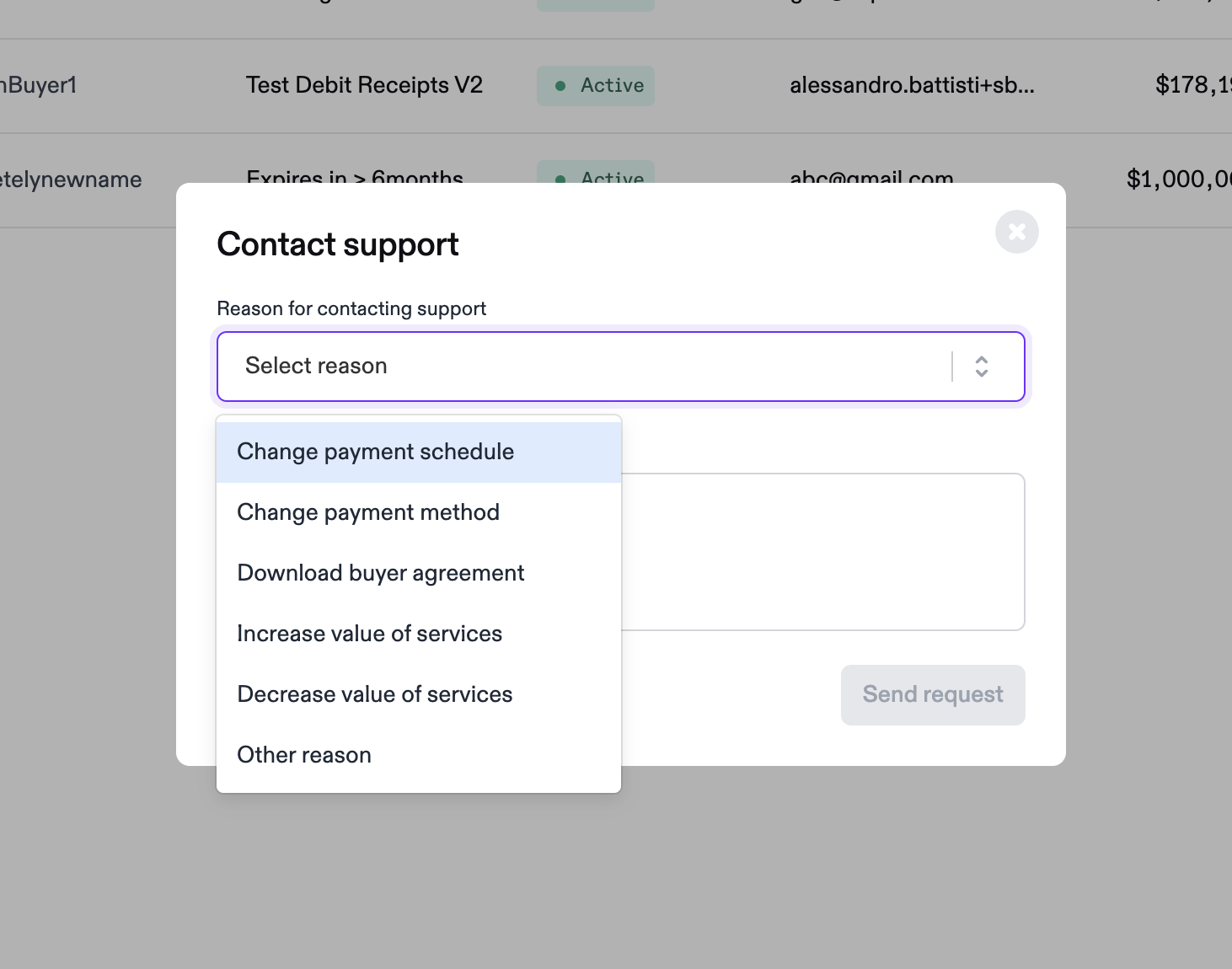
For any questions, please contact us at support@capchase.com.