Working with Partners: A Vendor's Guide to Partner Ready
Last updated: October 2, 2026
Partner Ready lets you bring your reseller or channel partners directly into Capchase. Instead of building the order for them or relaying details back and forth, you can assign a partner rep to a buyer, and they can take it from there — pricing the deal, generating a proposal, and sending the payment link themselves. This article covers how to assign a partner and how notifications work in this new flow.
Why This Matters
Assigning a partner rep to a buyer gives that partner their own access to the deal, so they can self-serve:
They see the same approved terms you do
They can price the deal using your rate card
They can generate a proposal and send the payment link directly to the buyer
You stay the owner of the order the whole time — the partner is added as the contact, not a replacement for you
By default, your economics — what you earn, your fees, and any subsidized pricing — are hidden from partner reps everywhere in their workspace.
How It Works
1. Assigning a Partner to a Buyer
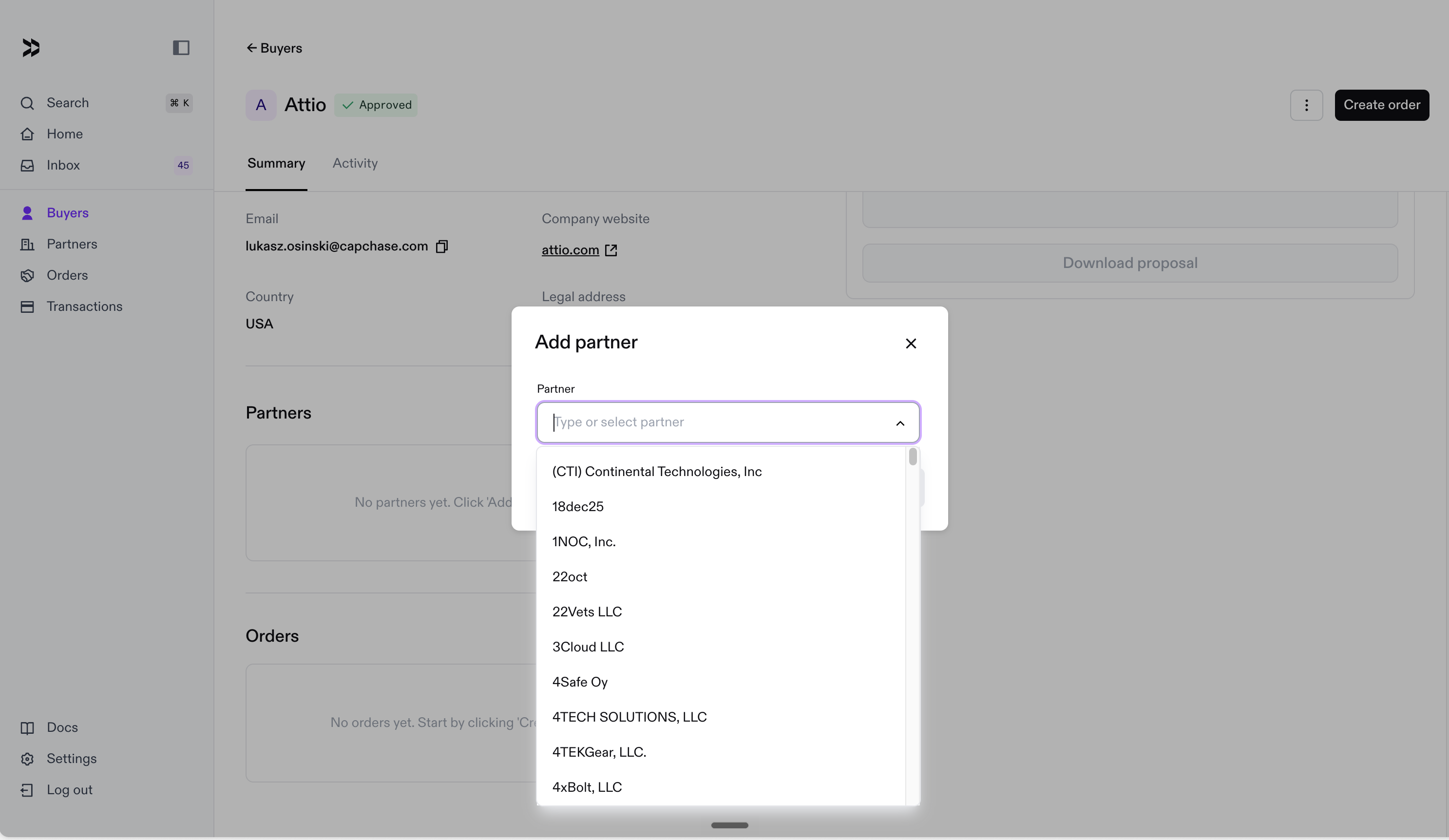
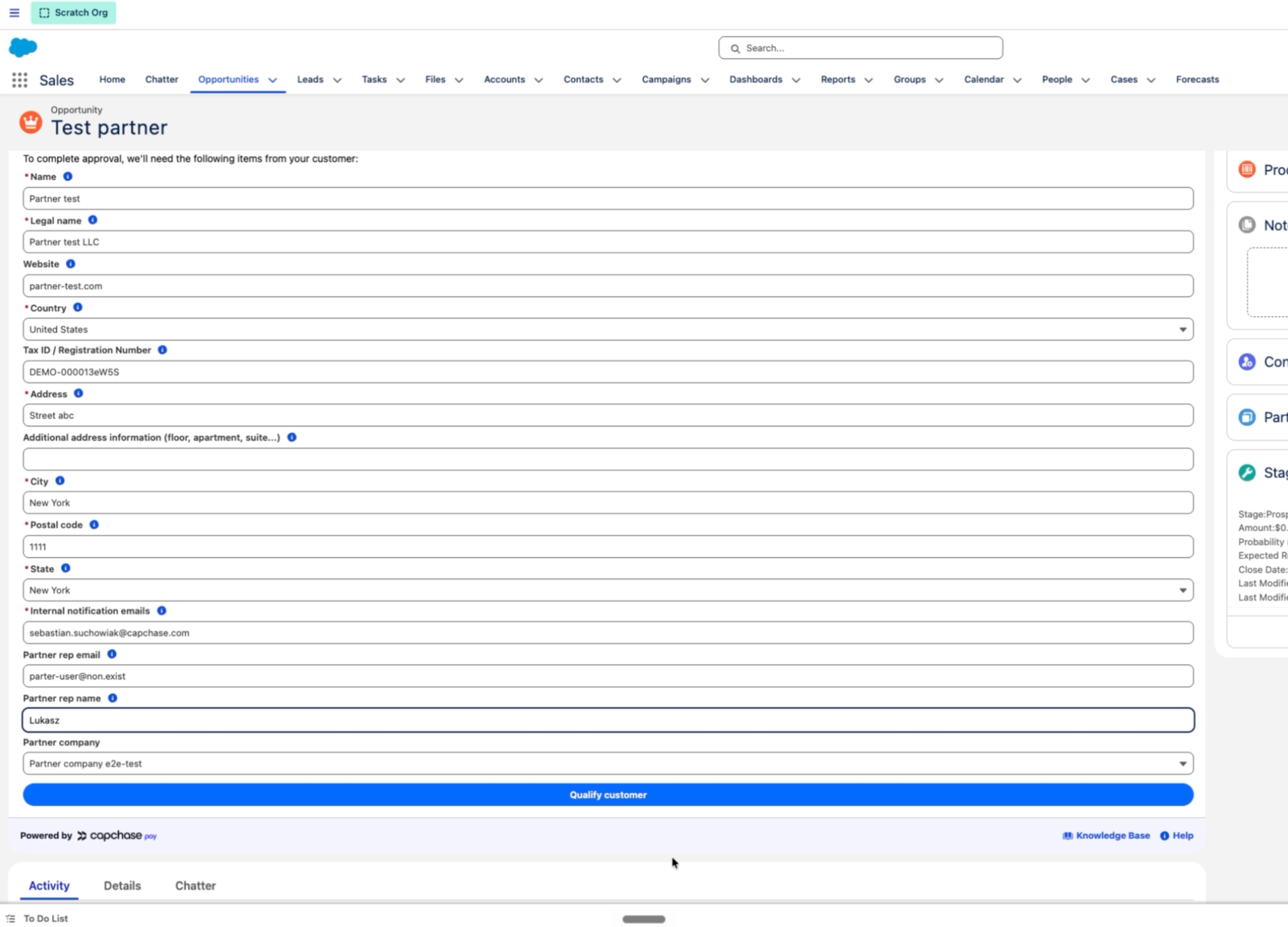
On the buyer's page, you can assign a partner from a list of your existing partner contacts, or enter a new email address if it's someone new. This works the same way whether you're using the Capchase app or Salesforce.
2. How Notifications Work
Timing depends on where the buyer is in the approval process when you assign the partner:
Buyer already approved: The partner rep is notified right away.
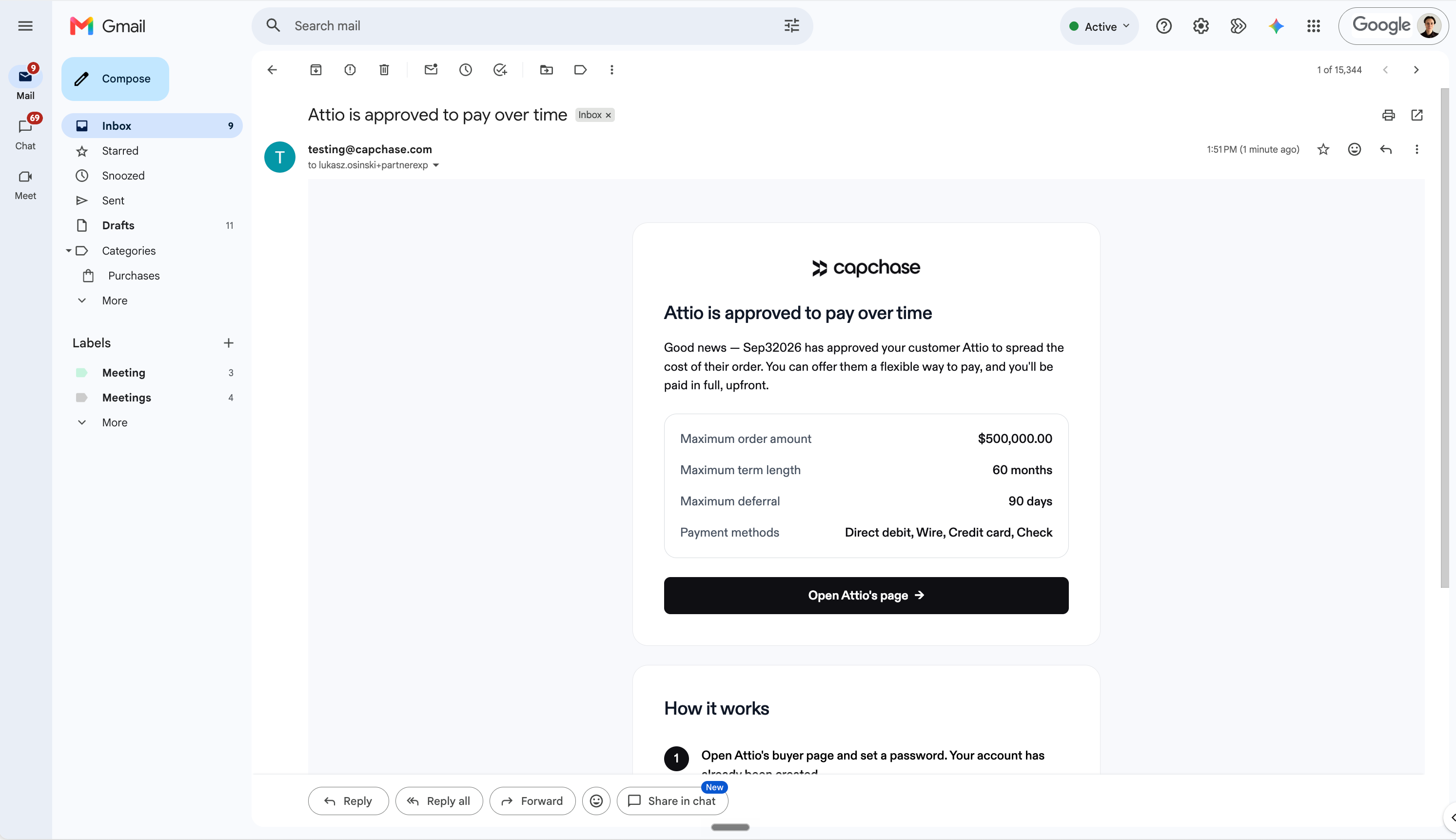
Buyer still pending: The partner rep isn't notified yet — they'll get an email as soon as the buyer is approved.
This means you can assign a partner as early as you like, without worrying about them being pinged before there's anything for them to act on.
3. What the Partner Can See and Do
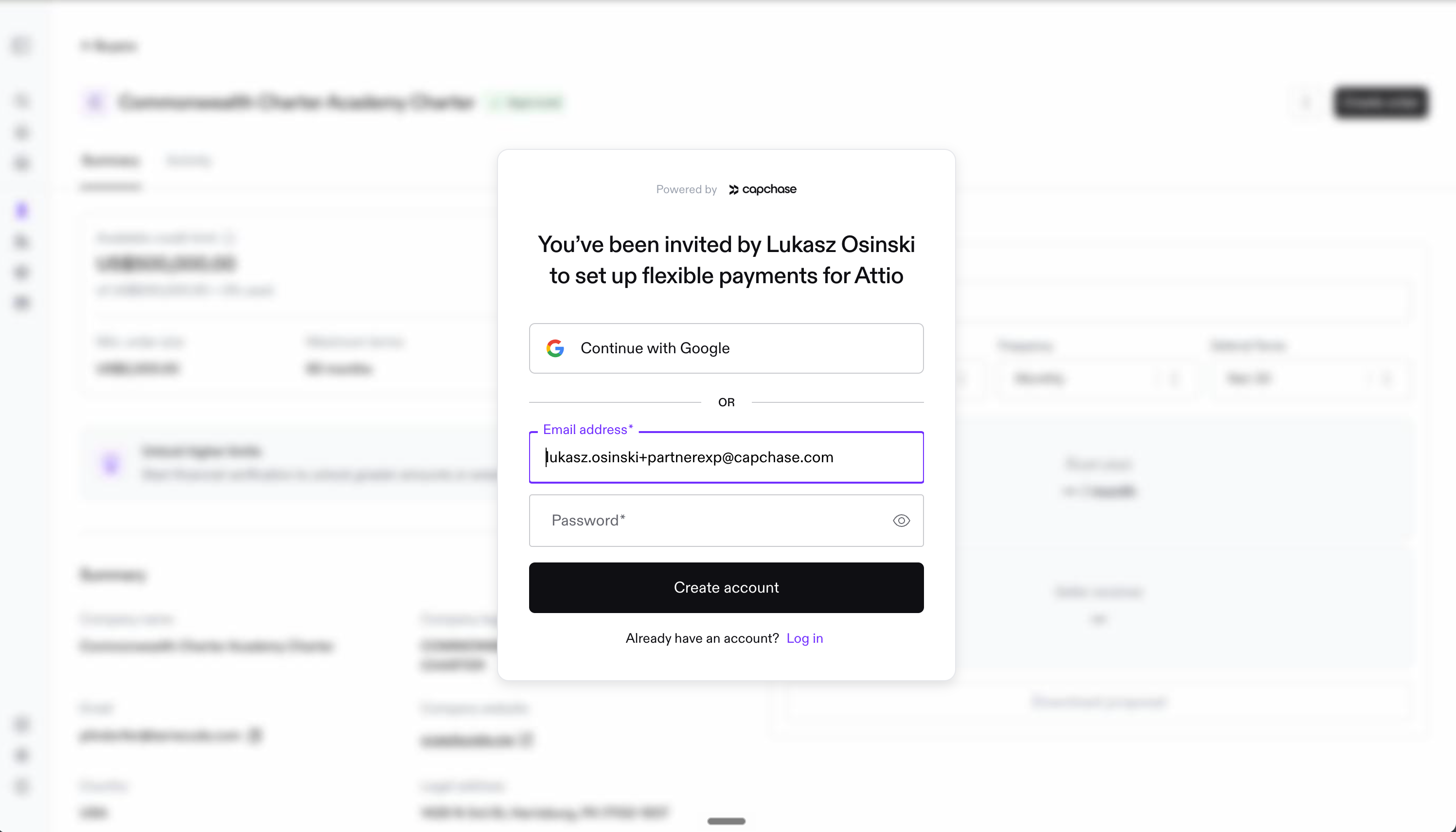
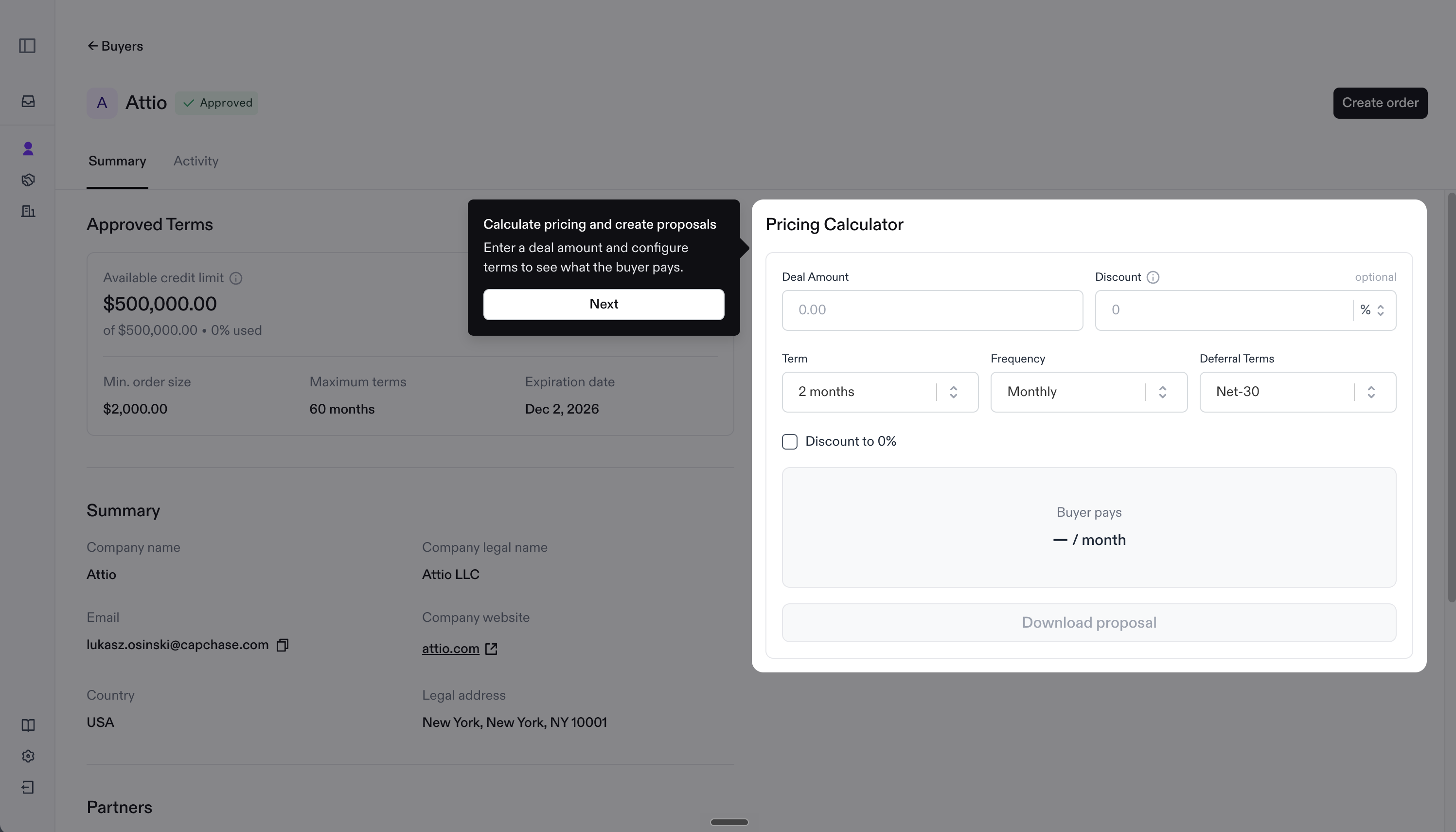
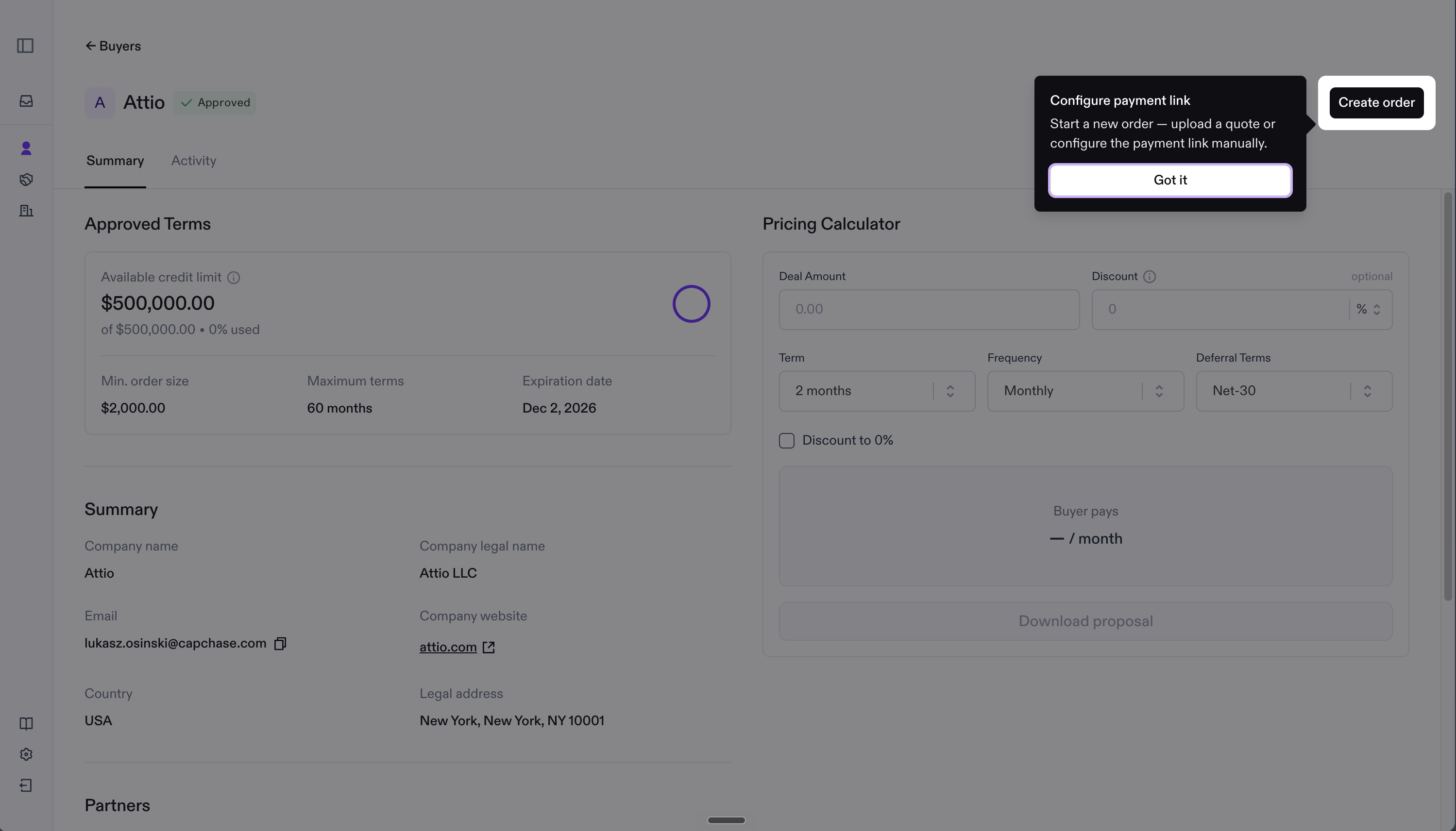
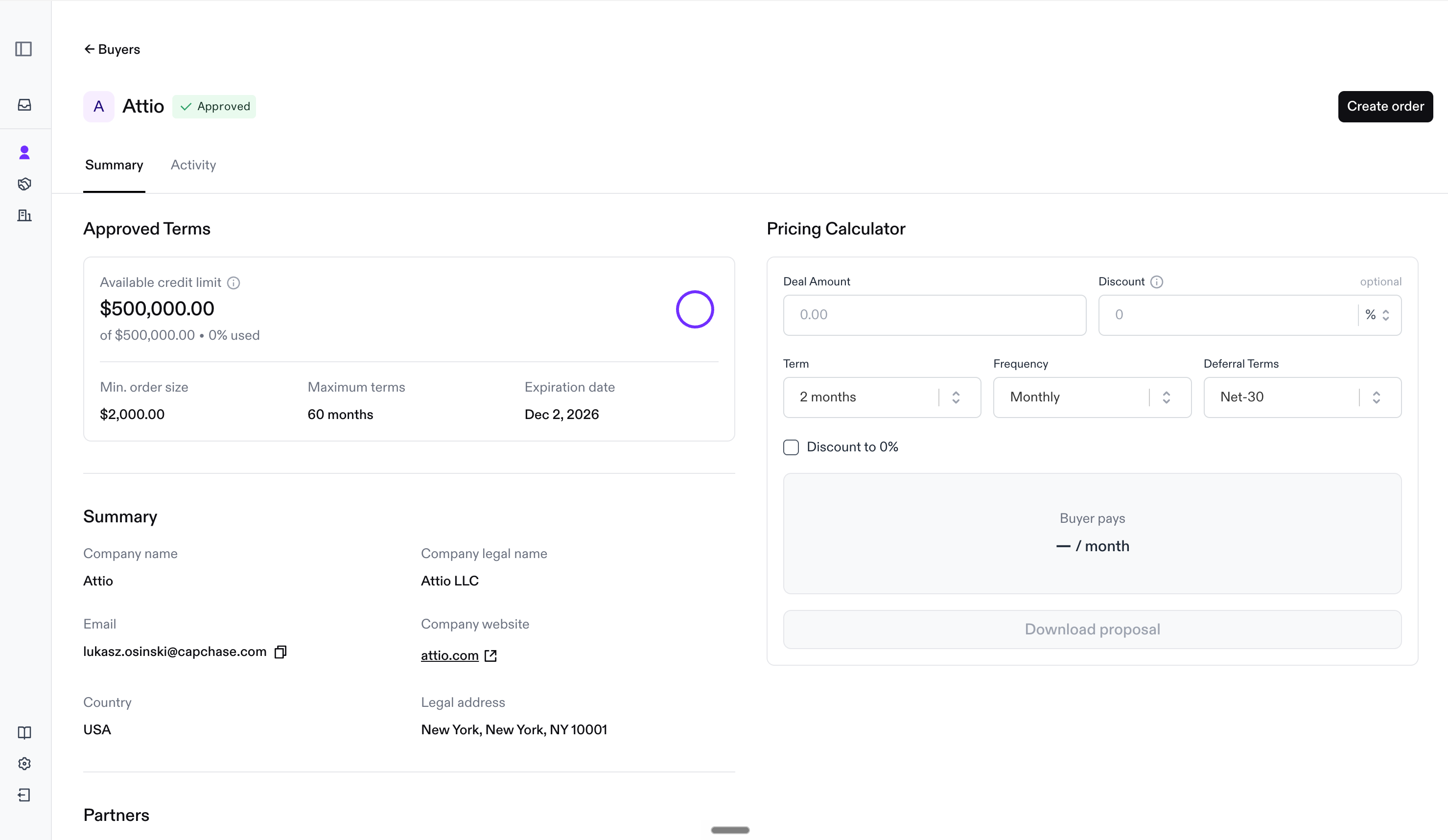
Once notified, the partner rep gets their own Capchase account (or is notified in their existing one) and can view the approved terms, generate a proposal, and send the payment link — without needing anything further from you.
4. Tracking Your Partners
On your partner page, you can see all the partner reps you work with, along with the buyers and orders assigned to each one. From the same page, you can also invite new partner reps directly.
5. Staying in the Loop
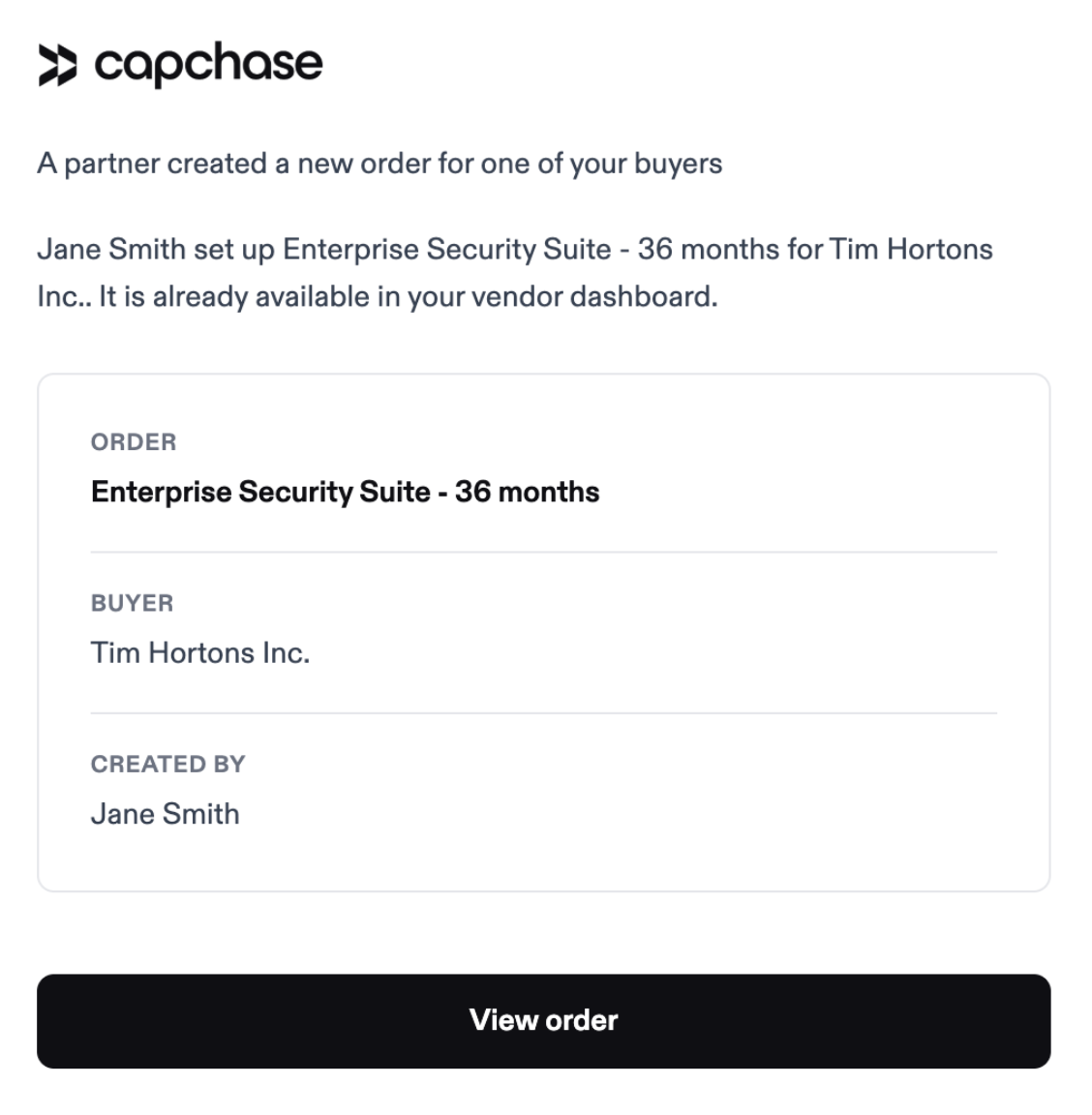
You're notified whenever a partner creates an order, and it also shows up in your dashboard. Once the buyer completes the order, both you and the partner rep are notified.
If you want to review the emails your partners receive, you can set up a BCC address to stay updated. Ask Support to do so.
If you have any questions, please don't hesitate to send us a message at support@capchase.com.