Creating and managing deals from HubSpot CRM
Last updated: May 6, 2026
Overview
Capchase integrates with HubSpot, making your sales team's lives much easier. With this integration, your users can easily submit and receive qualification results for their customers directly in HubSpot, in addition to creating Payment Links and managing deals. If you are interested in using this integration, please get in touch with your Capchase representative or send us a message at support@capchase.com.
Important to know before starting:
Make sure you have the HubSpot - Capchase integration installed and
You can only use existing Companies. Currently, it is not possible to create new contacts in the integration.
In this article, you will learn how to:
Run the customer qualification (KYB) for your Buyers directly from the Company’s page on HubSpot.
Create and copy Payment Links to send to your Buyers and
Check the status of your deals.
Here’s a walkthrough of the process:
Customer Qualification
Your customers, also known as your Buyers, must go through a qualification process to ensure they are eligible businesses. You can submit them directly from HubSpot following the steps below:
Go to the Buyer’s Company page and look for the Capchase integration. You should see it on the right side of the page.
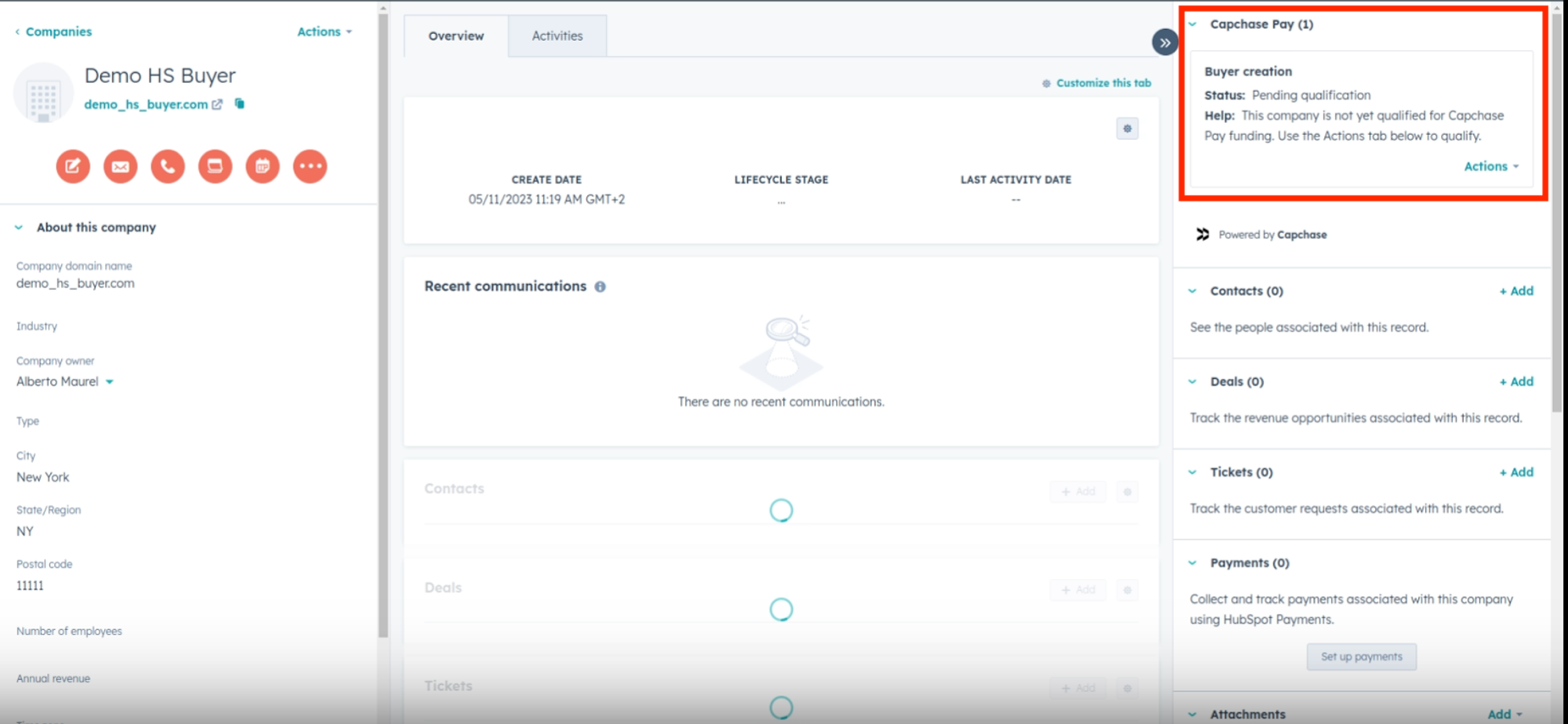
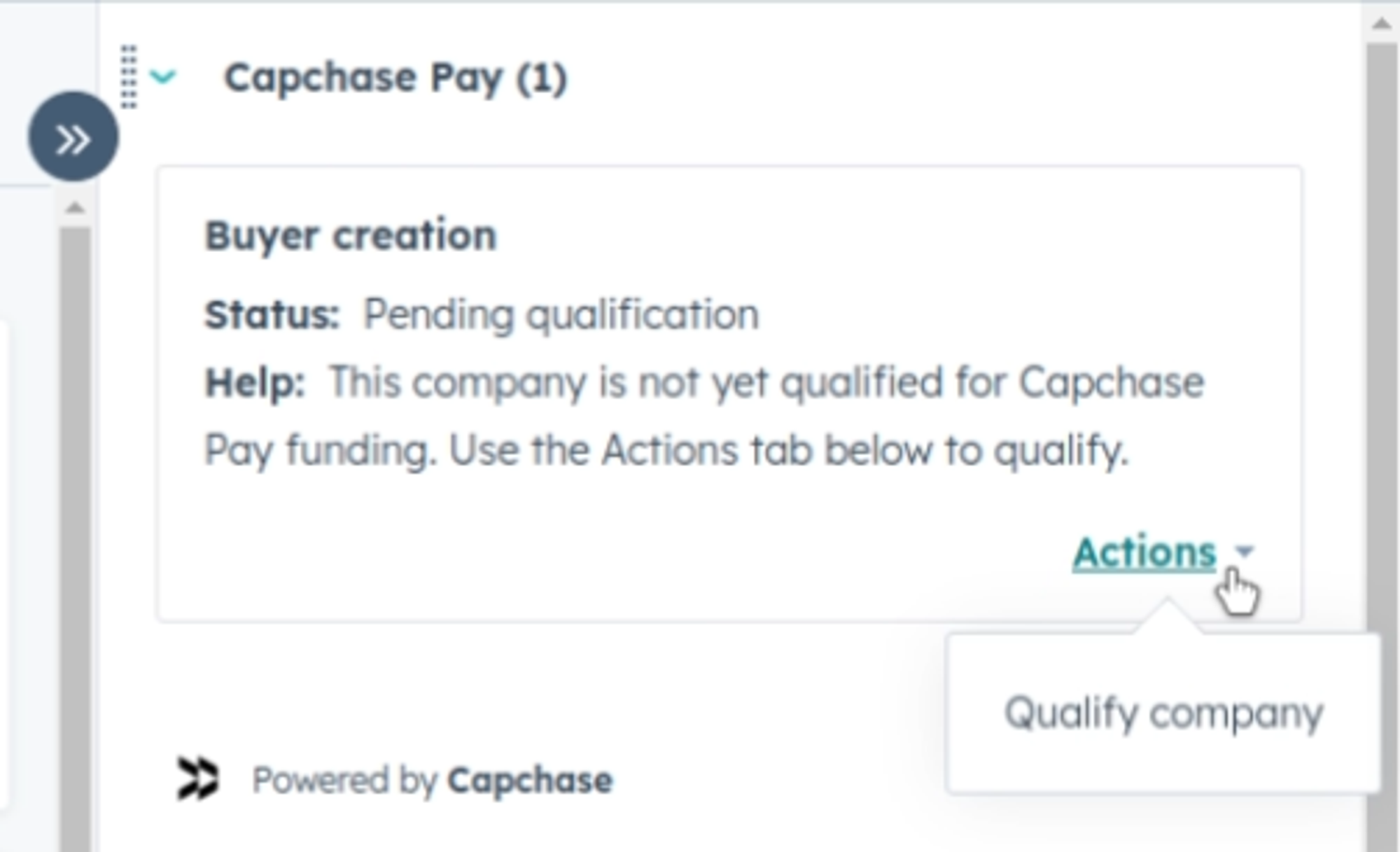
Click on the ‘Actions’ button, and then on ‘Qualify company’.
You’ll see a form pre-populated with the Buyer’s business information, as available in their HubSpot profile. Include the business’s information as they are shown on legal papers. Make sure to include the legal name, since we use it to run the evaluation.
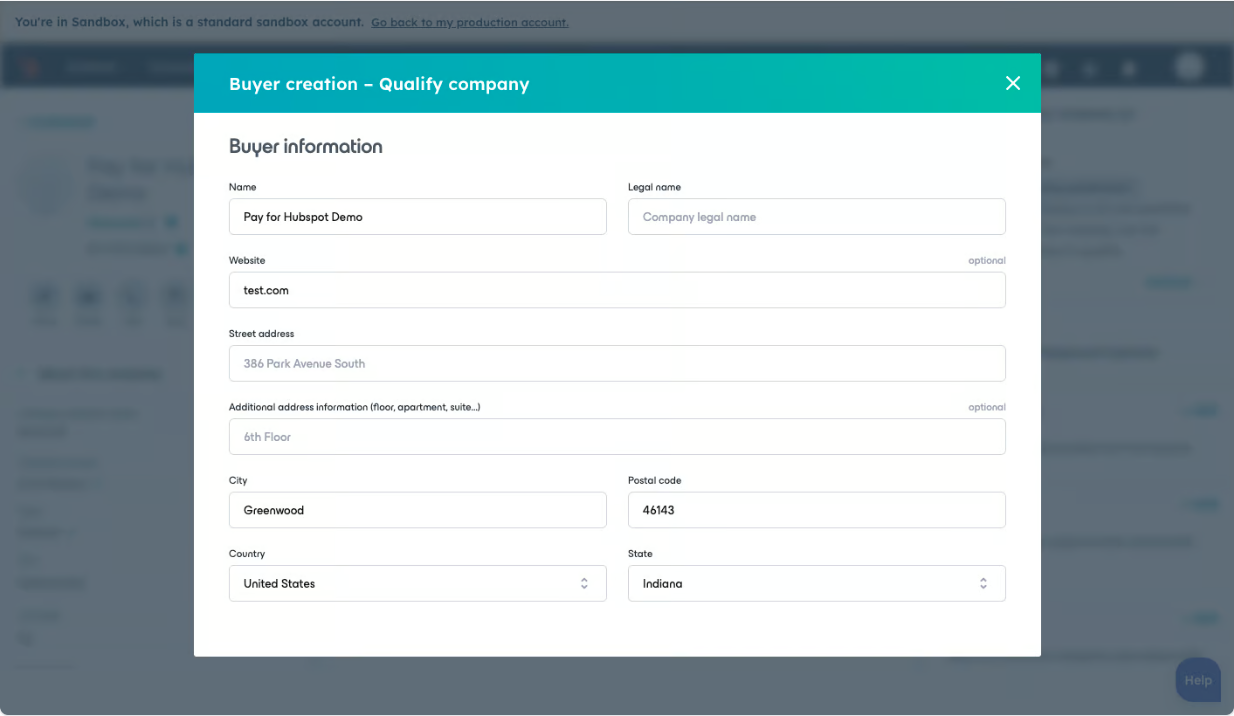
Pro-tip: You can create a field for your Company object called legal_name as an internal name. If you populate this data in the Company object, it will also be automatically entered in the form.
Once you have entered all required information, click ‘Qualify Buyer’ and wait for the results. Make sure that everything is correct before sending it: The qualification is automatic, and even a typo can affect the process. If everything is correct, you should receive approval within a minute.
Qualification Status
Qualifying: The Buyer has been submitted for evaluation and is being processed.
Approved: Your Buyer was successfully approved, and we can move forward with the next steps.
Manual Review: This evaluation will be reviewed by our team. It could be that there was an error, a restriction, or missing information on your Buyer's part. We might contact you for additional information.
Input Required: We couldn't validate the buyer's name or address. You can review it directly in the app.
Rejected: Your Buyer was determined ineligible during the qualification assessment. Check here for more details.
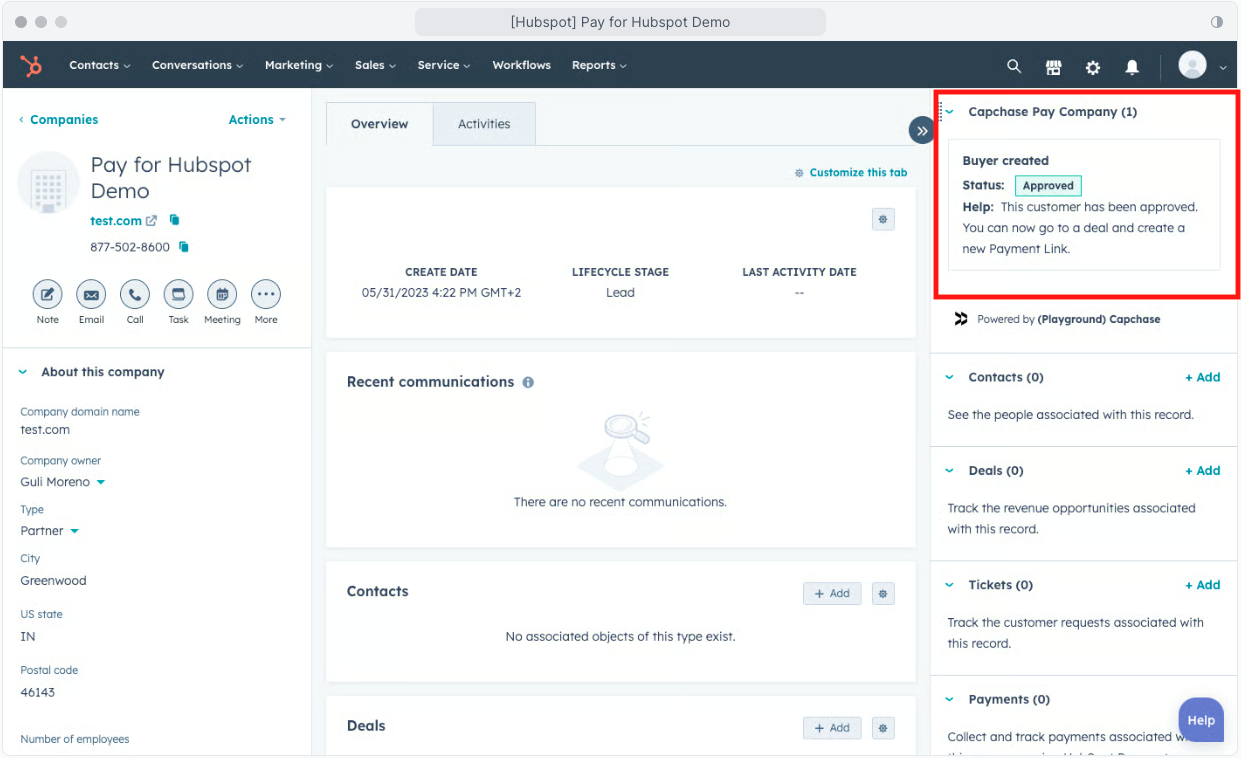
Creating a Payment Link
Once a Buyer is approved, you can create a payment link directly from HubSpot using the Company’s Deals.
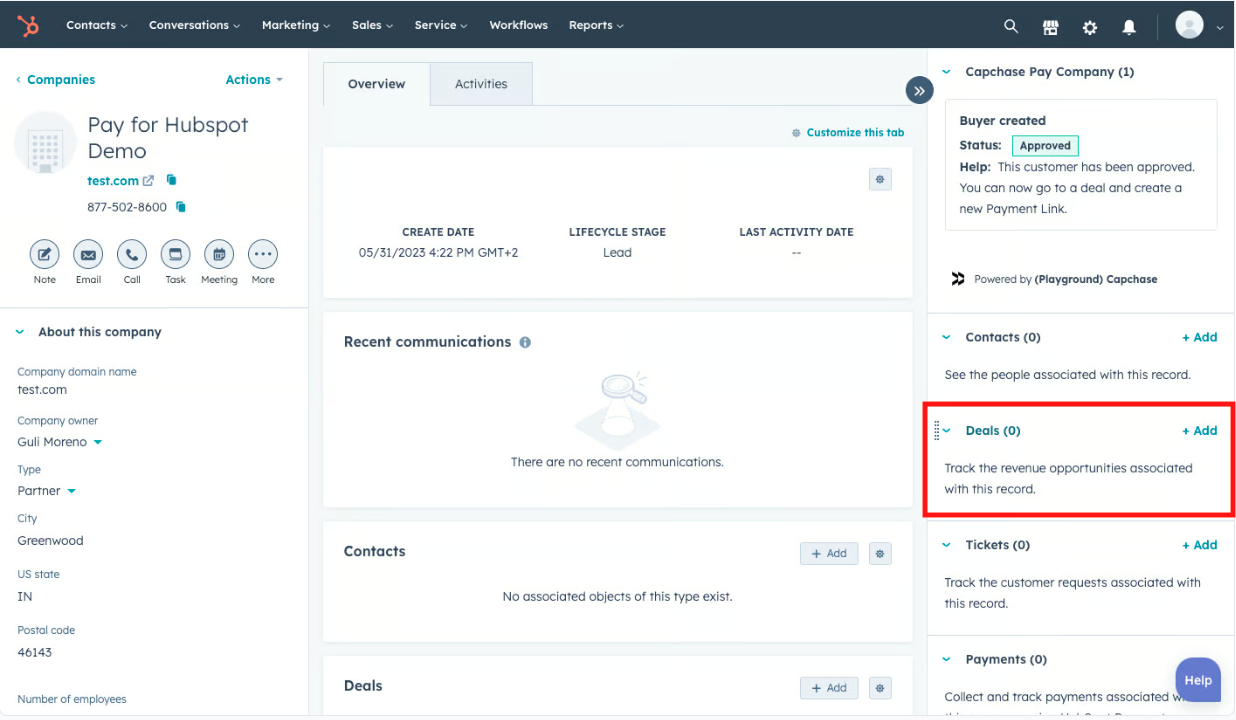
To create a Hubspot Deal, go to the approved Buyer’s Company page, click on ‘Deals’, and then ‘+Add’ on the right-hand menu. Fill in the required information and click on ‘Create’.
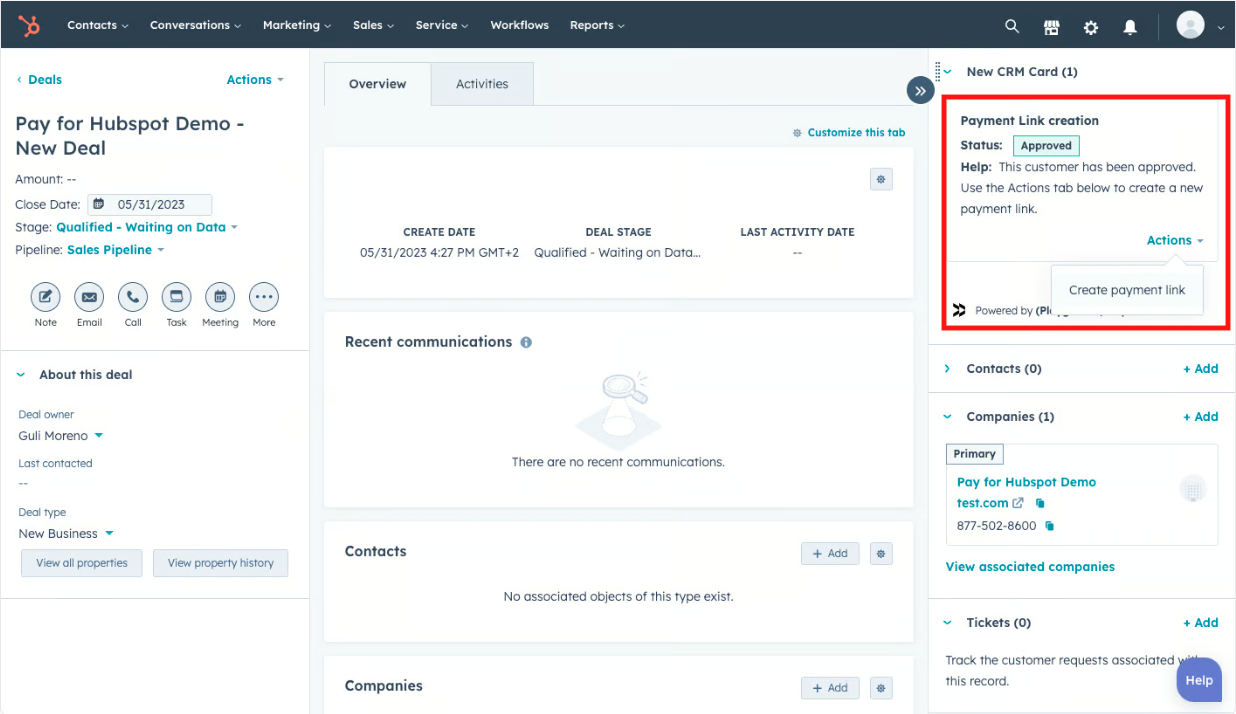
Once the HubSpot Deal is created, the Capchase integration will display the ‘Payment Link creation’ status. Click on ‘Actions’ and then on ‘Create payment link’ to start.
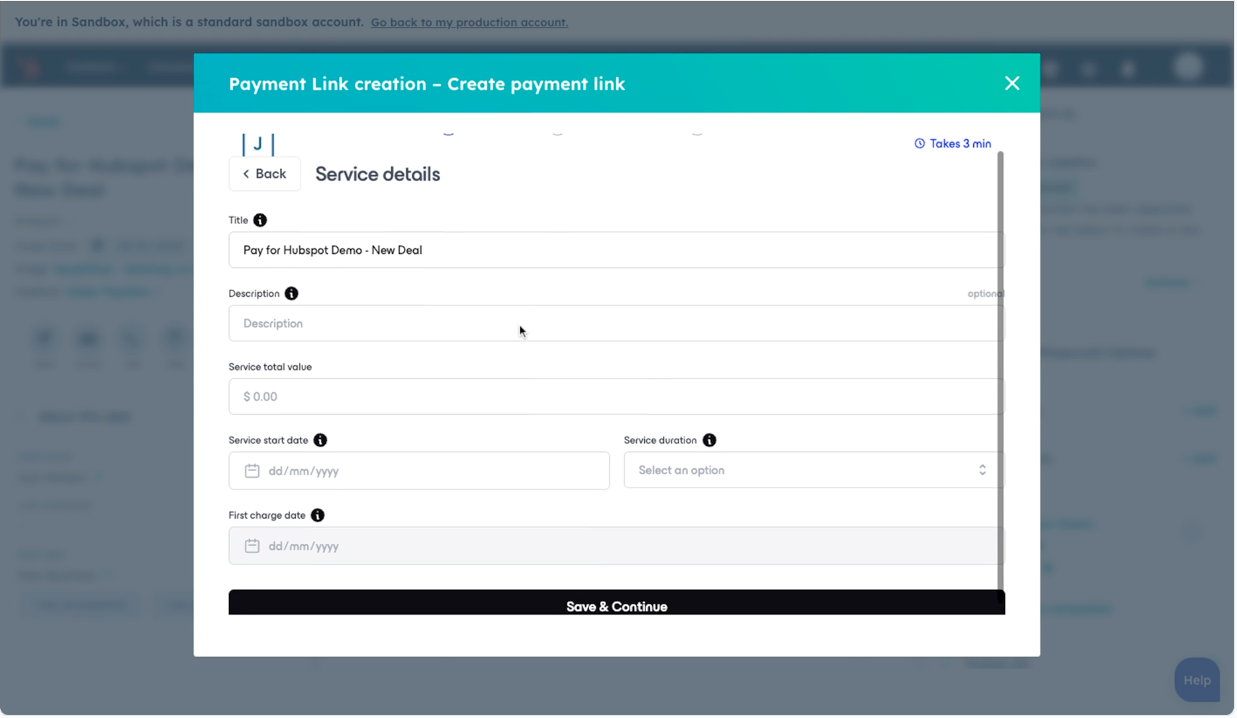
Fill in the required fields with the Details of the Service:
Service Title
Service Description
Total Contract Value
Service Start Date
Total Service Duration
First Charge Date
Include the email addresses that should receive notifications about this deal for your Buyers and your company. Separate email addresses with spaces.
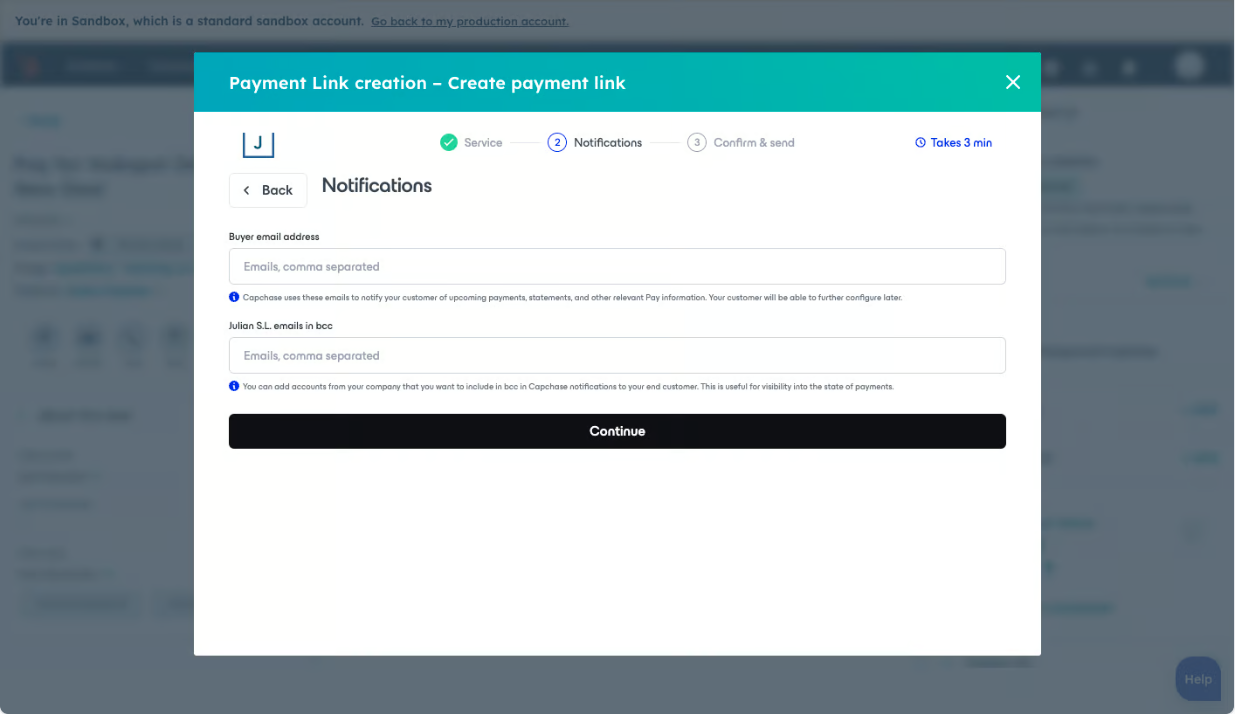
Pro Tip: You can add different email addresses to receive deal updates — we recommend using this feature to provide real-time updates to all relevant stakeholders, including Sales and Finance, at your company.
After reviewing the Payment Link details, click on ‘Confirm & create payment link’.
Share the Payment Link with your Buyer! By clicking on ‘Email payment link to buyer’, Capchase will email the addresses listed in the Buyer’s field. You can also copy the link to send directly to your Buyer.
Checking on Deals' status
You can follow up on your deals process directly on the HubSpot Company’s page.
Payment Link Created: You will see this status once you create the Payment Link, and it will remain this way until your Buyer successfully completes it. If you need to resend the link, click ‘Actions’ to copy or send it again.
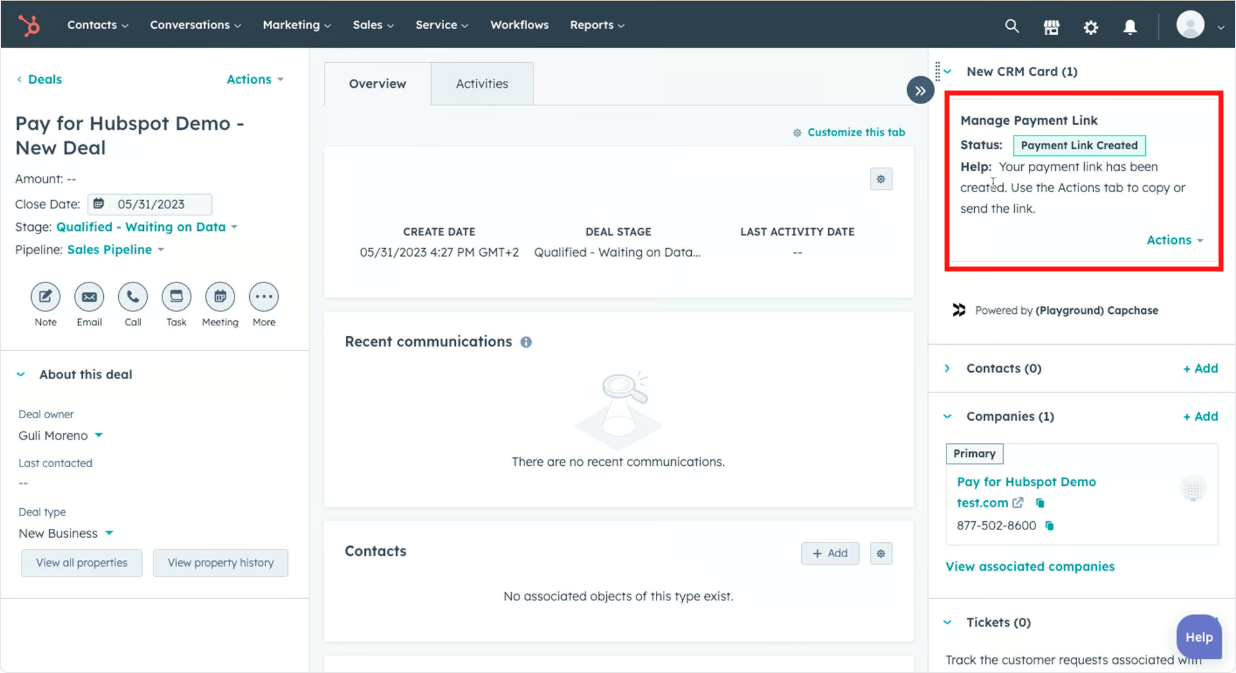
Archive: Archive any payment links that are not going to be used. This is useful in case you need to create a completely new link for the same deal.
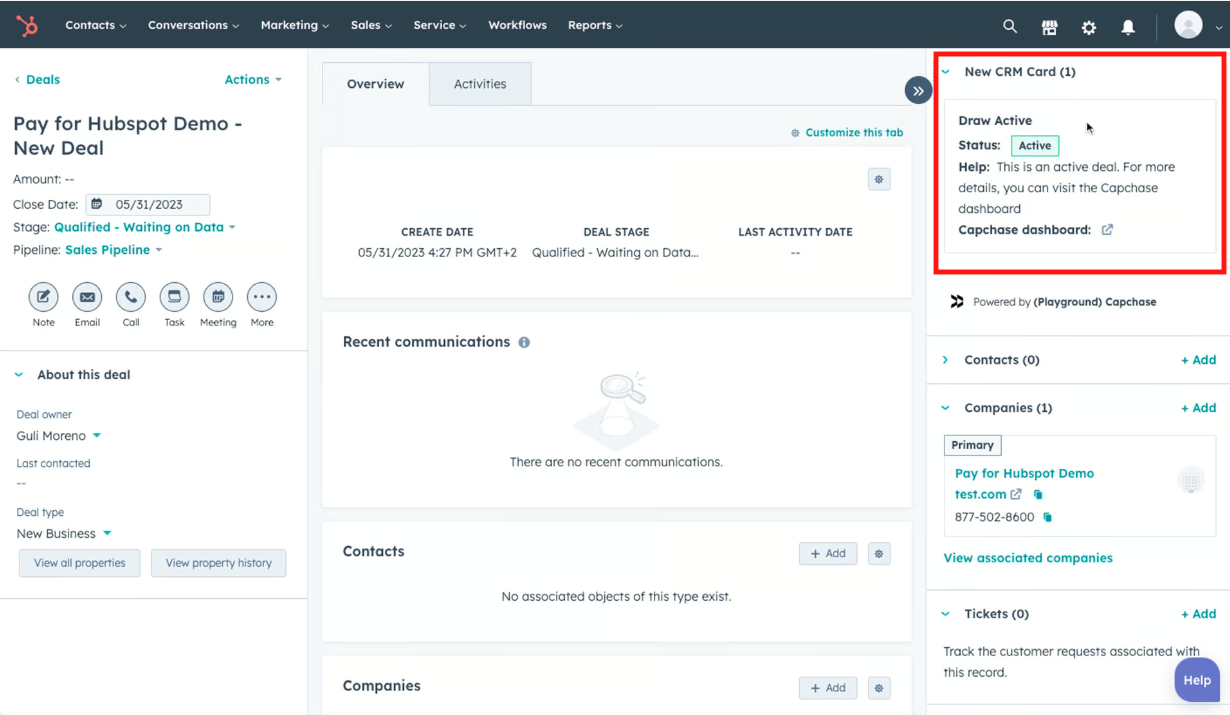
Active: This status will show once the Buyer completes the Payment Link and the first payment settles.
If you have any questions, don’t hesitate to send us a message at support.pay@capchase.com.